Start with text
Describe a subject, setting and movement.
 ImgEdify
Make a clip in ImgEdify
Make an AI video from a written idea or a reference image, then preview and download your clip. Choose an available model and settings, and check the credit cost before you generate. ImgEdify is an independent alternative to Flashloop for creating individual visual assets.
Create a videoText or image input · Cost shown before generation · Sign-in and sufficient credits required
Describe a scene to create a clip, or add an image to guide the subject and composition. Pick from the models currently available and review the result in history. This workspace produces individual clips; longer projects may require a separate editor.
Describe a subject, setting and movement.
Give an existing image a new motion.
Select a model, check its quote and preview your clip.
These ImgEdify clips were made in Animate a Drawing with Seedance 2.0, a reference illustration and the prompt shown. They are not Flashloop outputs. To try a prompt here, choose Image to Video and upload a suitable image; models and results may differ.
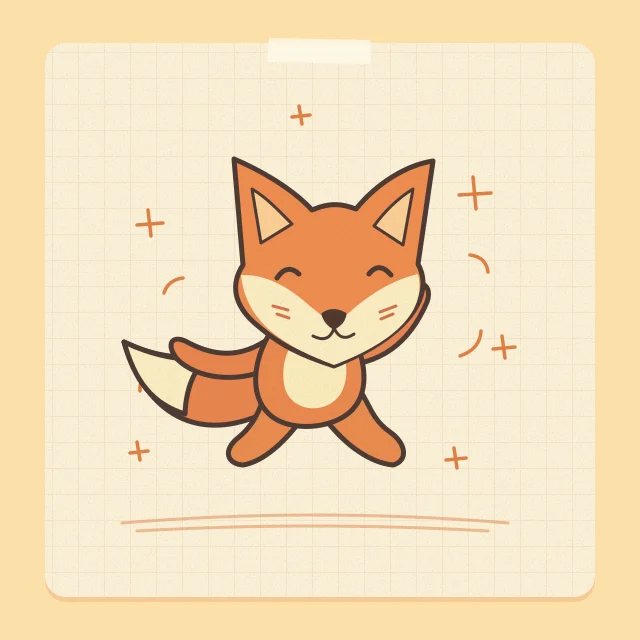
Try a clear, full-body drawing with an expressive tail and room for small steps.
Input: one illustration · Output: generated video
Use Image 1 as a visual reference. From the first frame, reillustrate its main subject as a charming wax-crayon drawing on lightly textured warm paper. Keep the subject recognizable through its silhouette, important details and main colors. Use broad wax marks, uneven strokes, and visible paper grain throughout the clip. Animate only that subject. Do a light side-to-side two-step, swing both arms and gently swish the tail if there is one. Compose a single stationary shot, with the complete subject and all movement safely inside the frame. Keep the paper, lighting, perspective and crayon treatment stable. Finish close to the initial pose for easier repeat playback. No additional subjects, scene changes, camera moves, words or logos.

Give a simple character an easy-to-read greeting for a card or message.
Input: one illustration · Output: generated video
Use Image 1 as a visual reference. From the first frame, reillustrate its main subject as a charming wax-crayon drawing on lightly textured warm paper. Keep the subject recognizable through its silhouette, important details and main colors. Use broad wax marks, uneven strokes, and visible paper grain throughout the clip. Animate only that subject. Raise one hand or front limb for a short, friendly wave, then lower it to the starting pose. Compose a single stationary shot, with the complete subject and all movement safely inside the frame. Keep the paper, lighting, perspective and crayon treatment stable. Finish close to the initial pose for easier repeat playback. No additional subjects, scene changes, camera moves, words or logos.
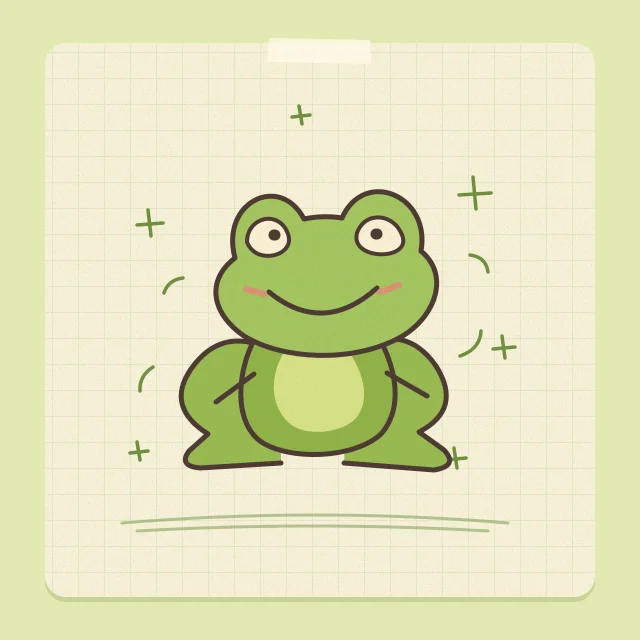
Use a squat silhouette and a little space above it to make the jump readable.
Input: one illustration · Output: generated video
Use Image 1 as a visual reference. From the first frame, reillustrate its main subject as a charming wax-crayon drawing on lightly textured warm paper. Keep the subject recognizable through its silhouette, important details and main colors. Use broad wax marks, uneven strokes, and visible paper grain throughout the clip. Animate only that subject. Crouch, make one small joyful hop in place, then land gently in the starting pose. Compose a single stationary shot, with the complete subject and all movement safely inside the frame. Keep the paper, lighting, perspective and crayon treatment stable. Finish close to the initial pose for easier repeat playback. No additional subjects, scene changes, camera moves, words or logos.
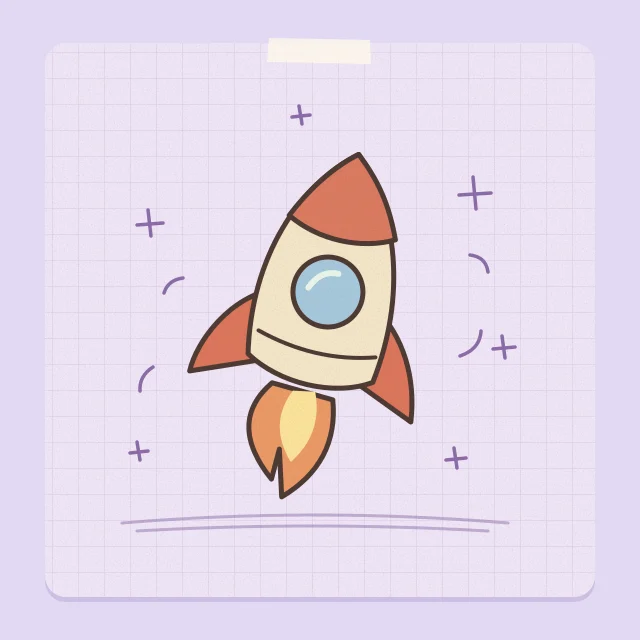
Animate an object with a recognizable outline and a slow, controlled move.
Input: one illustration · Output: generated video
Use Image 1 as a visual reference. From the first frame, reillustrate its main subject as a charming wax-crayon drawing on lightly textured warm paper. Keep the subject recognizable through its silhouette, important details and main colors. Use broad wax marks, uneven strokes, and visible paper grain throughout the clip. Animate only that subject. Float up slightly and rock gently from side to side, then drift back to the starting position. Compose a single stationary shot, with the complete subject and all movement safely inside the frame. Keep the paper, lighting, perspective and crayon treatment stable. Finish close to the initial pose for easier repeat playback. No additional subjects, scene changes, camera moves, words or logos.
Exploring the workspace and preparing a prompt is free. To generate, sign in and use sufficient credits for the quote shown; available free credits can contribute.
Flashloop describes a broader creation suite with a Super Agent, reusable elements and dedicated studios. ImgEdify’s workspace on this page focuses on individual clips you direct yourself. Both offer image and video creation, but the workflows, models and plan conditions differ.
| Need | ImgEdify | Flashloop |
|---|---|---|
| Create a clip | Text or reference image with selectable settings | Image and video models with studio workflows |
| Longer production | Create clips and assemble separately as needed | Super Agent and Film Studio workflows |
| Cost | Review the credit quote before generating | Plans and available models vary by tier |
Flashloop information checked November 13, 2026: official product page and pricing. Verify current features and terms before choosing.
Animate an illustration and add captions in your editor.
Use a product reference to explore motion, then check the details.
Create short scene ideas and assemble the strongest takes.
Start a clip with a written scene.
Animate a photo or illustration.
Create an image for your next shot.
Try the drawing studio used for the examples.
Find another step in your workflow.