Text-to-image creation
Describe the subject, setting, composition, and lighting to create a new static image.
 ImgEdify
Create and edit static images with GPT Image 2.6. Use text prompts or reference images, choose your framing, and download the result on ImgEdify.
Free-account generations include a watermark. Paid access applies to future generations; downloading does not remove an existing watermark.
GPT Image 2.6 is OpenAI’s image generation and editing family. Describe a subject, style, and composition to create product visuals, illustrations, or posters. For reference image edits, explain what to change and which subject features, colors, or product details to keep.
OpenAI describes the 2.6 release as improving consistency across edits and preserving visual details. Available features and settings here reflect the current ImgEdify integration. Review text, character features, and product details in your result. Read OpenAI’s model announcement
Describe the subject, setting, composition, and lighting to create a new static image.
Upload a reference image, describe a background or style change, and specify the subject features, colors, or product details to preserve. Review those details in the result.
Choose auto, square, landscape, or portrait framing. Rendering quality is handled automatically.
Give your prompt a concrete visual task, from everyday creative work to product presentations.
Describe a layout, brand colors, and the text you want for a poster or campaign visual. Check generated wording and logos before use.
Describe a product, its materials, and a setting to create visuals for your next presentation or campaign.
Specify the style, colors, and composition to turn an idea into an image you can refine.
Upload an existing image and describe changes to the background, content, or style. Check the result for details you want to preserve.
Work with prompts, reference images, previews, and downloads in one workspace.
Describe your subject, style, lighting, and composition to communicate the image you want.
Include reference images to give an edit visual context before generation.
Use auto, 1:1, 3:2, or 2:3 to suit the space where you plan to use the image.
See the current credit cost before you submit a generation task.
Review the finished result, then download your image for the next step.
Switch to other image models in the same generator to try a different approach to your subject or edit.
See a product image generated and downloaded through this generator, then adapt the prompt ideas below for your own work.
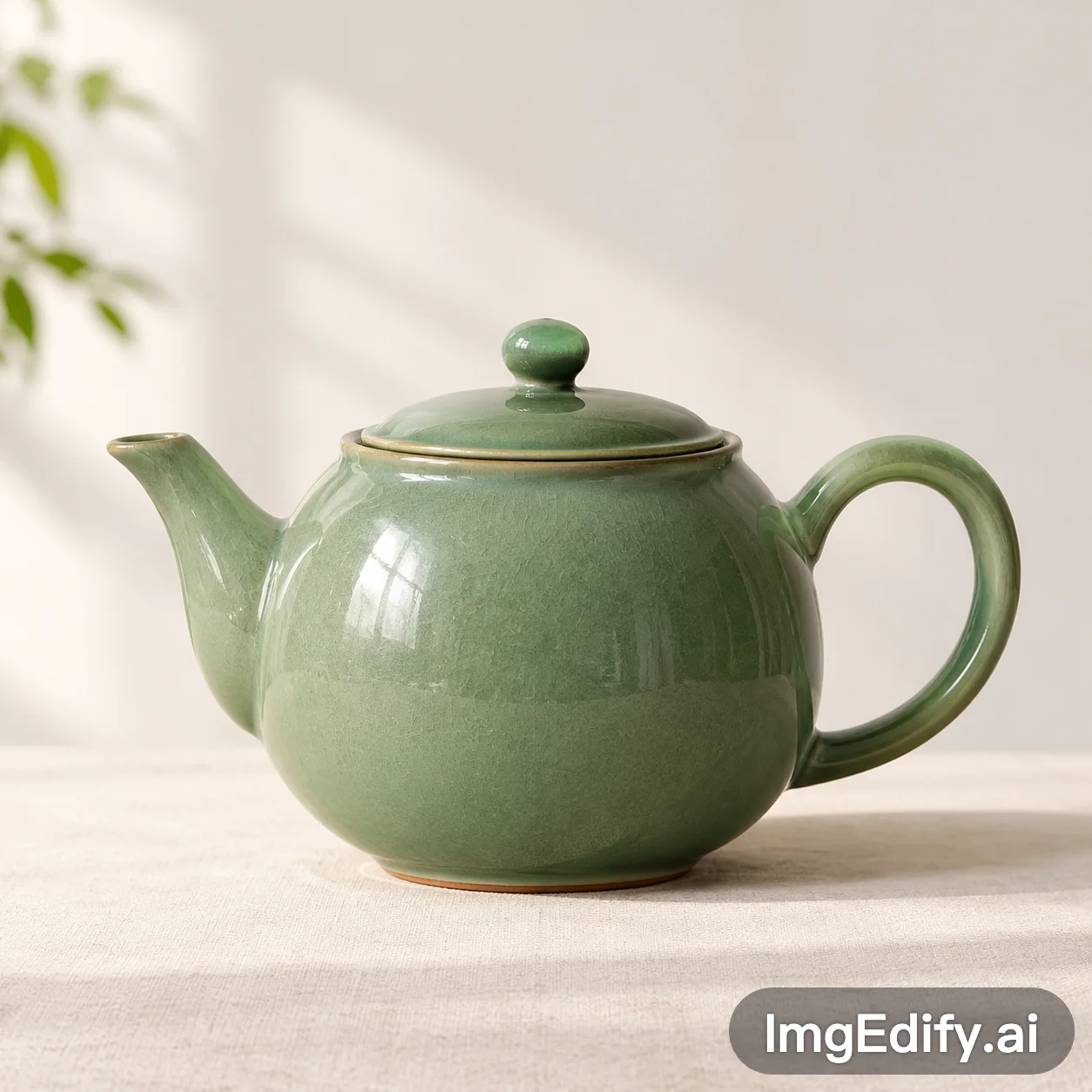
A real result created with this GPT Image 2.6 generator and verified by downloading the image. The displayed result retains the watermark from the free account used to generate it.
Prompt used for this generation
Studio product photograph of a green ceramic teapot on a cream table, soft daylight, minimal background, square composition, no text.
1:1 aspect ratio · Auto quality · 10 credits used
Downloaded output: PNG, 1254 × 1254 pixels. Final dimensions can vary between tasks.
A green ceramic teapot on a cream table, soft daylight, minimal background, studio product photograph, square composition.
Keep the subject and main colors from the reference image. Replace the background with a clean studio setting and use soft side lighting.
A corner bookshop on a rainy night, warm window light reflected on the wet pavement, detailed hand-drawn illustration, portrait composition.