Background and Object Edits
Replace a background or ask the model to add, remove, or change a visible object.
 ImgEdify
Upload one or more reference images, describe the change, and create a separate edited result. Change backgrounds, objects, clothing, colors, lighting, or visual style while keeping the source available for comparison and another pass.
JPG and PNG input
Upload files up to 5 MB each.
Up to 6 references
Combine a subject, product, style, or accessory.
Free credits after signup
Receive up to 60 signup credits and a daily +5 reward.
Cost shown before creation
Review the selected model’s credit cost first.
An AI image editor uses uploaded images as visual context and a written prompt as the editing instruction. Describe what should change and what should stay consistent, then choose a model to generate a separate result.
AI editing is generative, so faces, text, hands, and small details can vary between results. A clear source image and a specific prompt provide better context, but every output should still be reviewed before use.
Replace a background or ask the model to add, remove, or change a visible object.
Restyle a photo as an illustration, painting, cinematic frame, vintage image, or another visual direction.
Request a different outfit, accessory, hair color, or another appearance change in a portrait.
Generate another interpretation while keeping the source subject, layout, or scene as reference.
Compare four focused edits side by side: replace a background, remove distractions, recolor clothing, and restyle a photo. Each example includes the editing instruction to adapt to your own image.
AI-generated editing demonstrations made with imagegen, not recorded ImgEdify runs. Results vary by model, source image, and prompt; fine details may change.
From a busy setting to a clean studio scene
Give a perfume photo a simpler setting for a product listing or campaign. The edit replaces the surrounding props and room with a neutral backdrop while using the bottle as the reference.
Editing prompt
Replace the room, marble tabletop, rose, and fabric with a pale warm-gray seamless studio background and a matte ivory surface. Keep the perfume bottle in the same position and at the same size, preserving its glass shape, amber liquid, gold cap, and camera angle. Add a soft, realistic contact shadow beneath the bottle. Keep a square composition. No text or watermark.
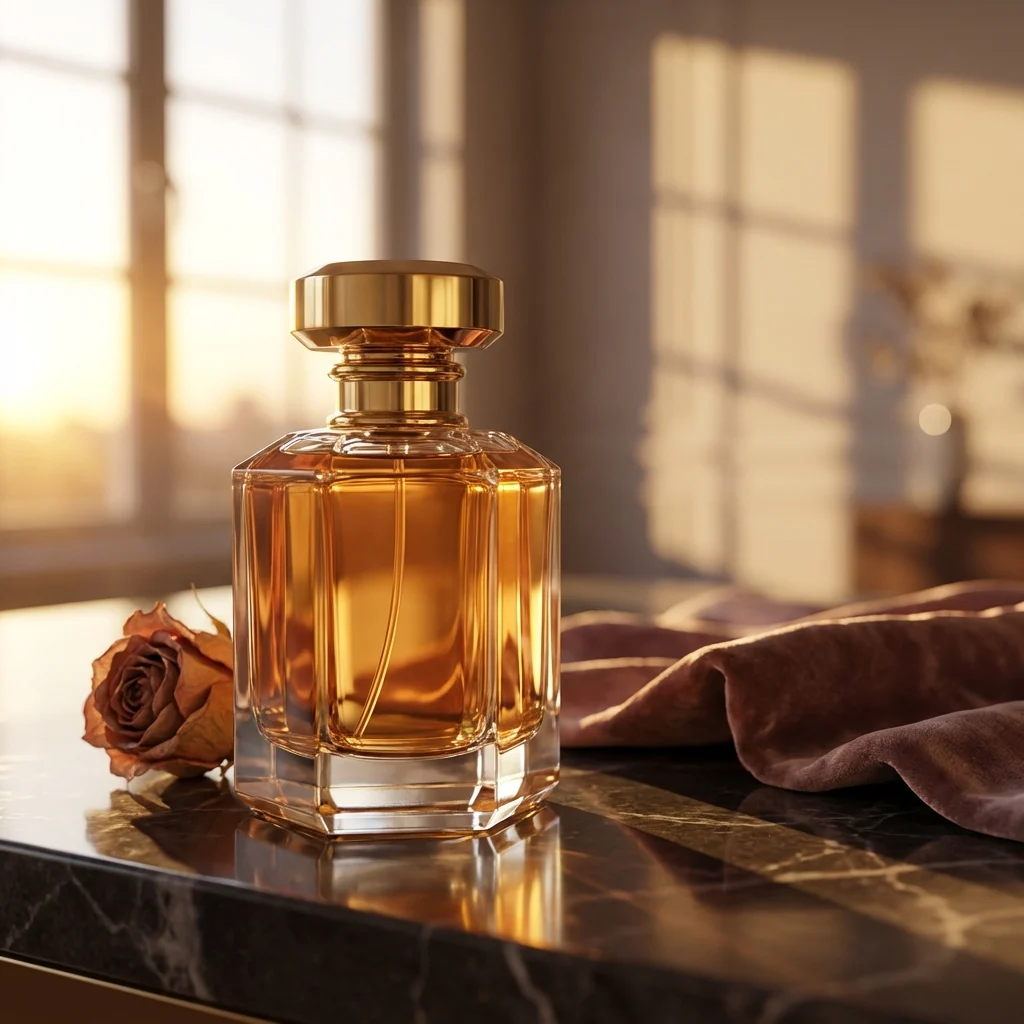 Before
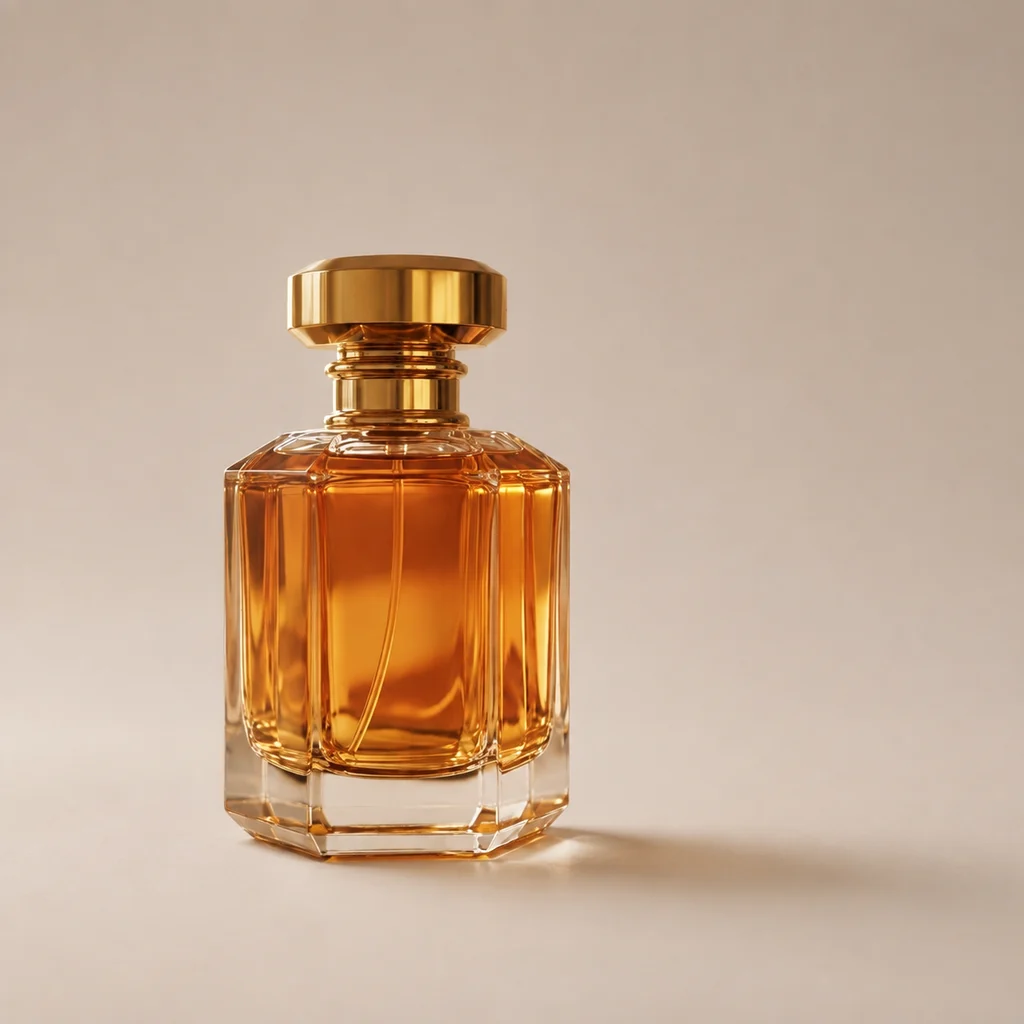 After
AfterClean up distractions around the main subject
Direct attention to the car by removing pedestrians from the left sidewalk. Naming the area to edit and the elements to retain gives the model a focused cleanup task.
Editing prompt
Remove all pedestrians from the sidewalk on the left, including the walking figure near the car. Reconstruct the pavement and street details behind them naturally. Keep the silver car, its position and reflections, the tram, buildings, streetlights, dusk lighting, and square framing unchanged. No new objects, text, or watermark.
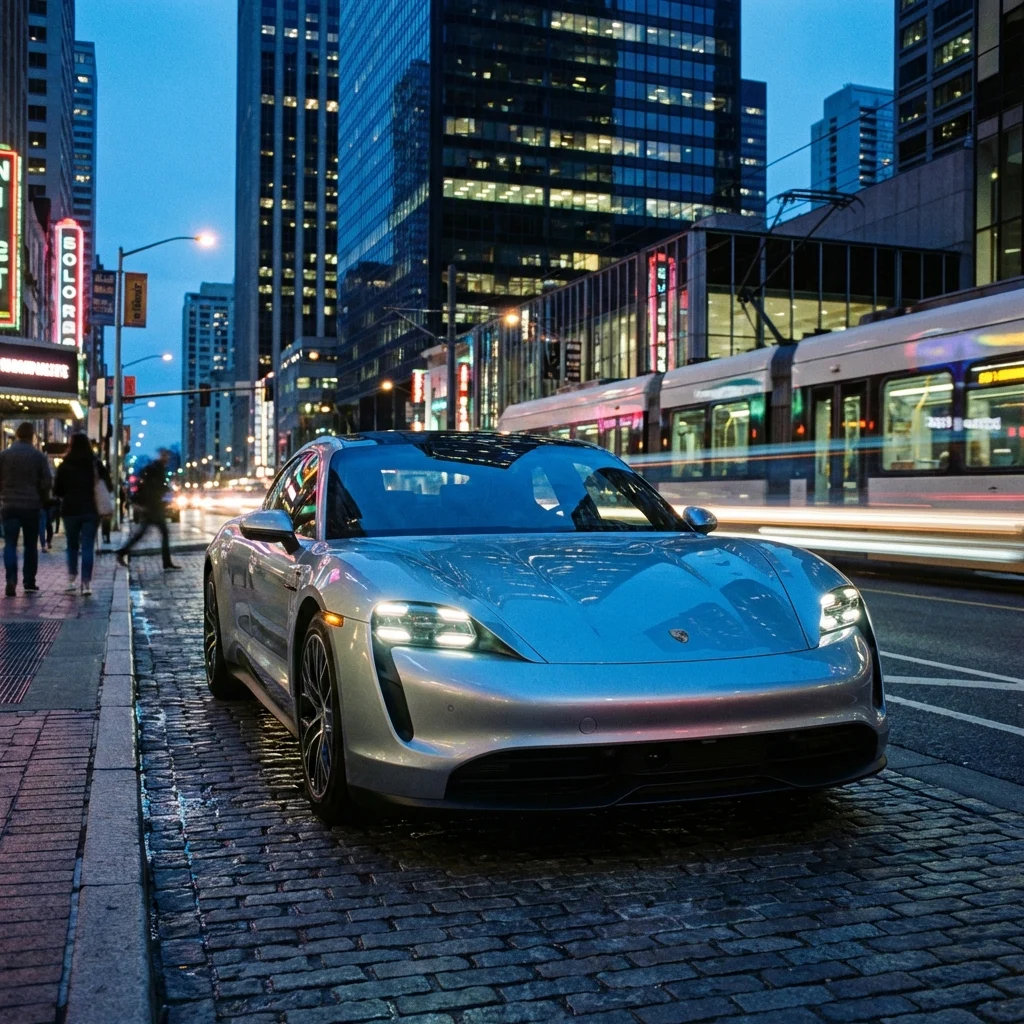 Before
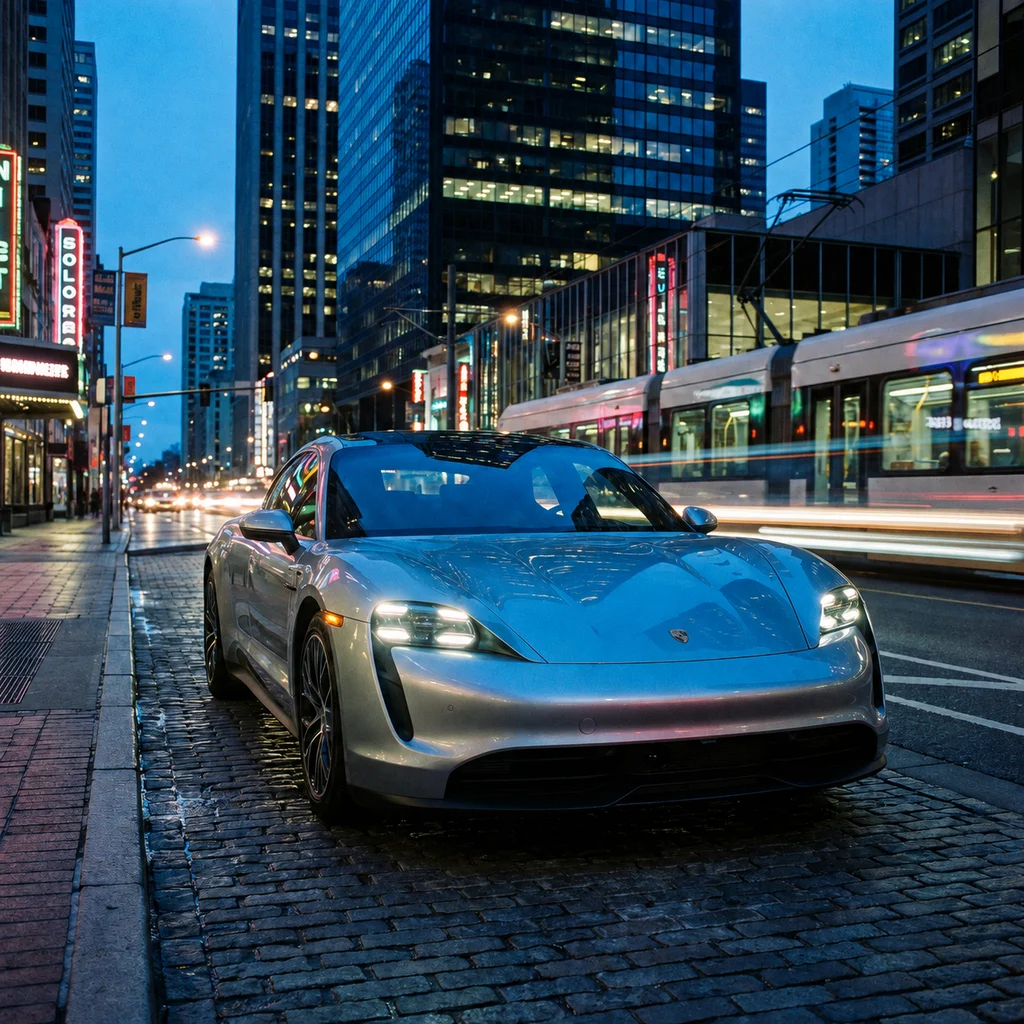 After
AfterTry a new color without requesting a new outfit
Explore a cobalt-blue version of a neutral blazer. Specify the garment, color, and details to retain, then review the face and fabric because generative edits can change more than the requested area.
Editing prompt
Change only the woman's gray-beige blazer to a rich cobalt-blue fabric. Preserve the original blazer cut, lapels, seams, and woven texture. Keep her face, skin texture, hair, expression, pose, outdoor foliage, warm sunlight, and square framing unchanged. No text or watermark.
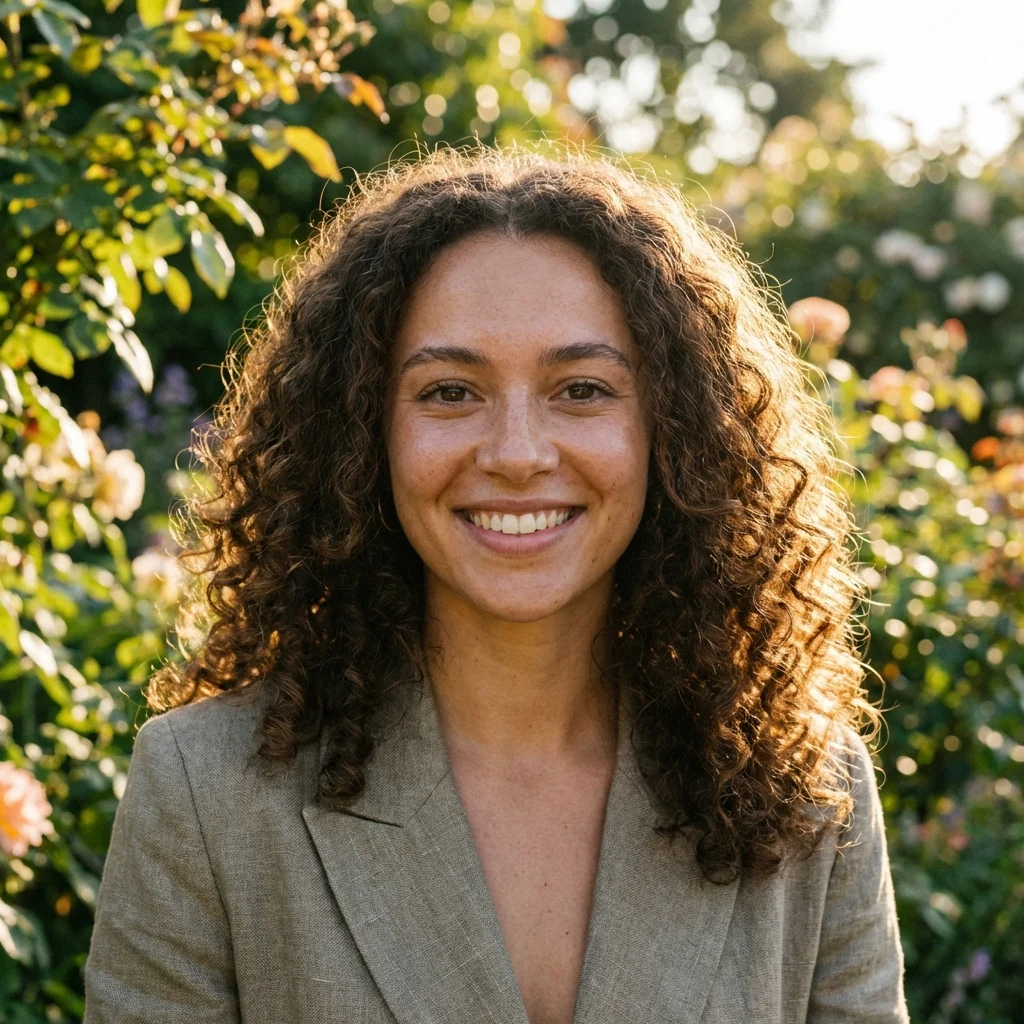 Before
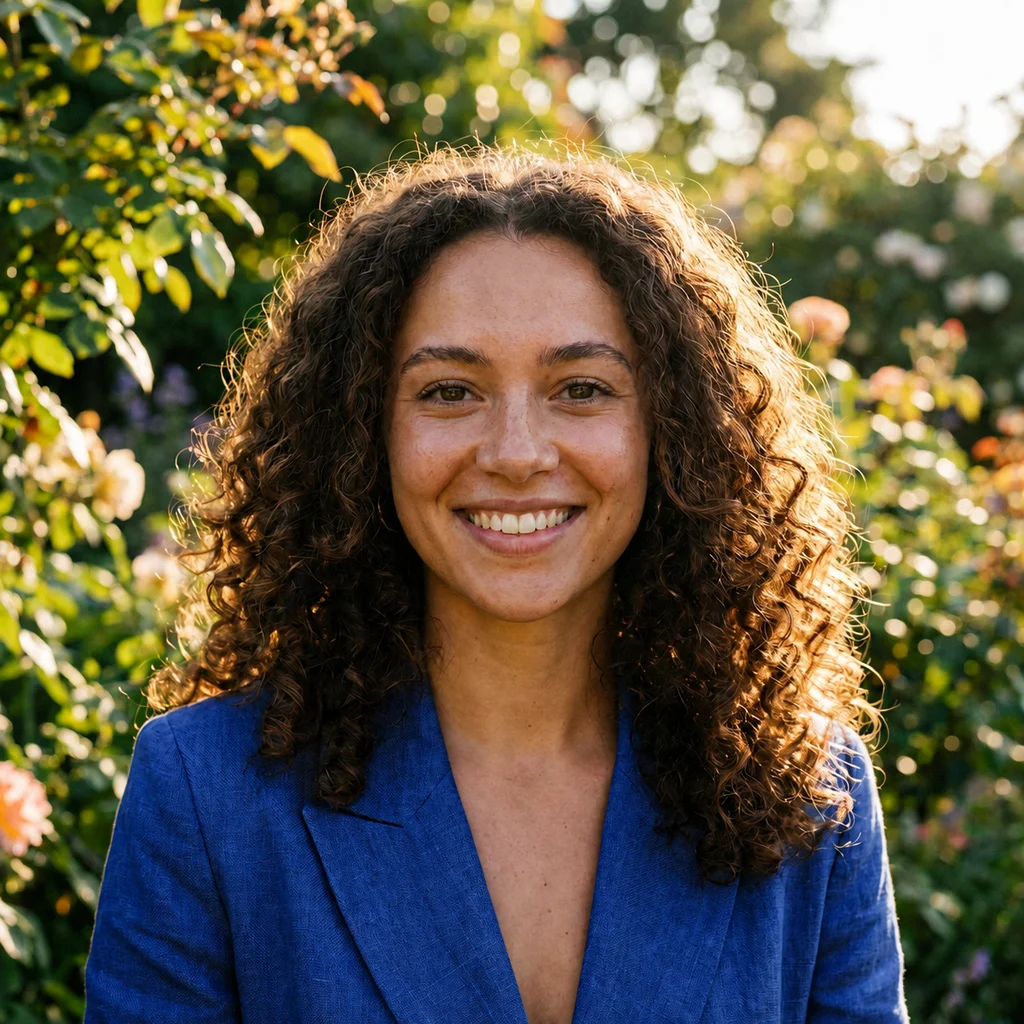 After
AfterRestyle the image while keeping a familiar subject
Use a puppy photo as the starting point for a watercolor portrait. Define the paper texture and paint treatment while asking for the seated pose, gaze, and garden details to remain recognizable.
Editing prompt
Turn this photograph into a delicate watercolor pet portrait on textured ivory paper. Preserve the golden retriever puppy's seated pose, floppy ears, gaze, proportions, and placement, with the grass and small white flowers still recognizable. Use translucent washes, fine fur details, soft green background washes, and warm golden tones. Keep the square framing. No text, frame, or watermark.
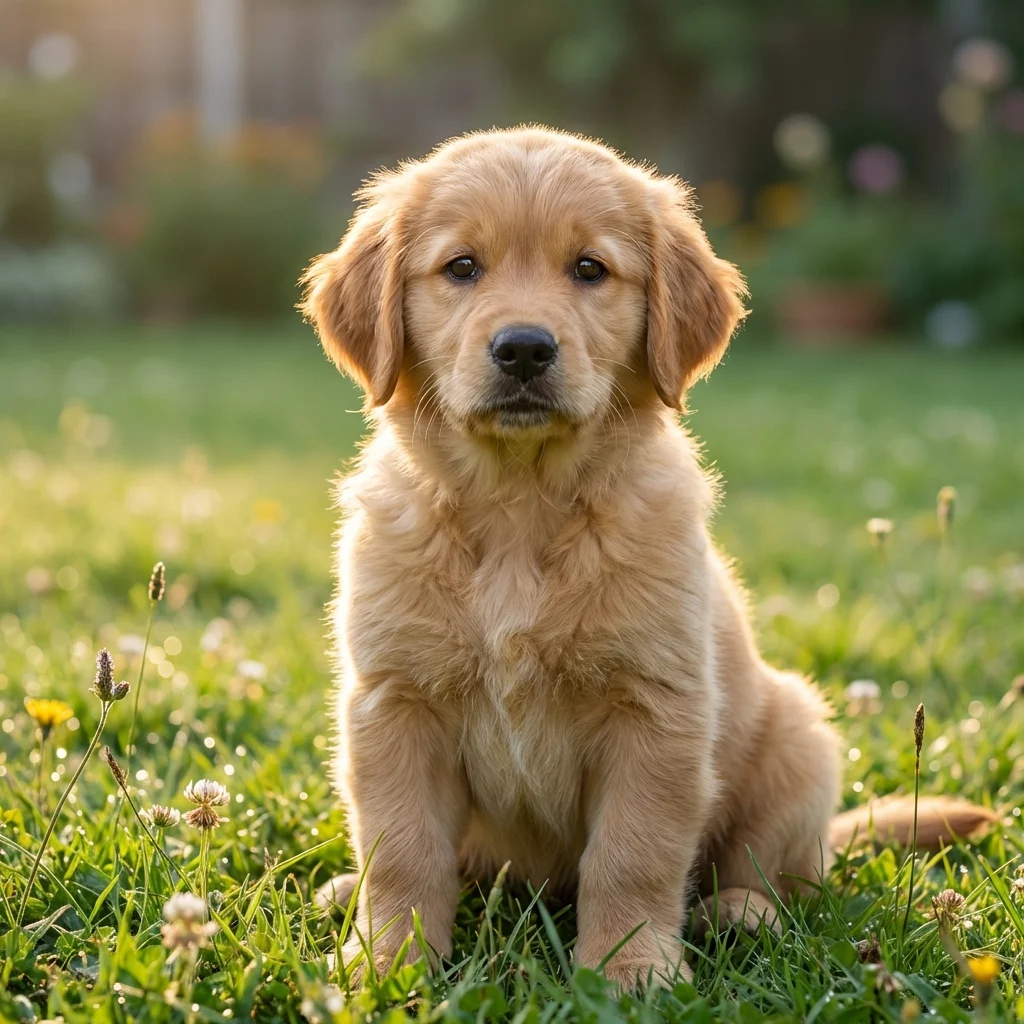 Before
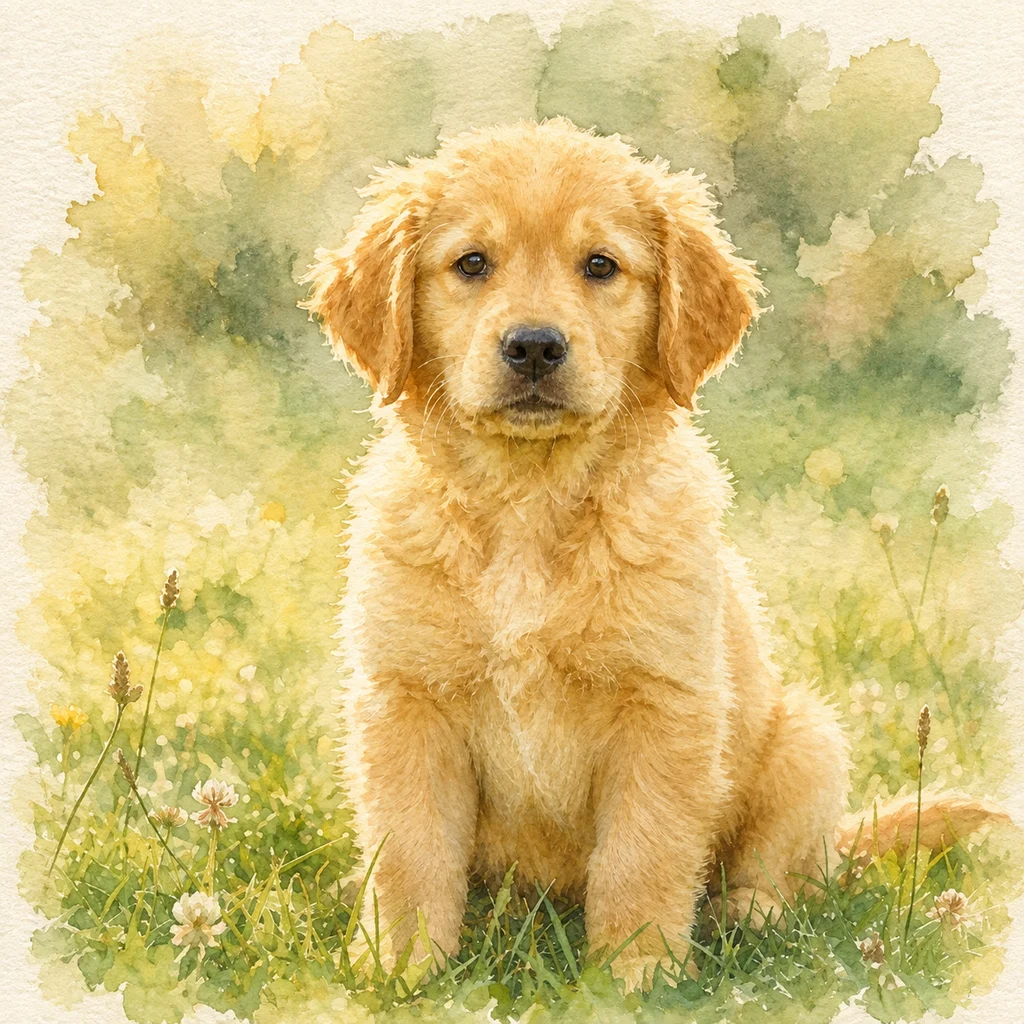 After
AfterCreate an account to receive up to 60 signup credits, then return for the daily +5 credit reward. The editor shows the current task cost before submission.
Start Editing for FreeSign in, then add up to six JPG or PNG reference images of 5 MB or less each. A clear source helps the model understand the subject and composition.
Write what should change and what should stay consistent. Specific instructions usually give the model better context.
Select an available image model and supported aspect ratio. Check the credit cost shown on the Create button.
Create the edit, open the completed result in history, then download it or load it as a reference for another pass.
The workspace keeps reference images, prompt controls, model selection, output settings, cost, and completed edits in one focused flow.
Use up to six references to explain a subject, product, outfit, accessory, or visual direction.
Choose an available AI model, supported aspect ratio, and model-specific output settings.
The Create button shows the current task cost before you submit it.
Open a completed image from history, download it, or load it as the reference for another edit.
Start with a concrete change, review the generated details, and continue with the right finishing tool.
Try a new background, color direction, package concept, or product presentation without changing the original upload.
Remove the finished backgroundExplore clothing, accessories, hair color, lighting, and illustration directions while keeping the source portrait as reference.
Prepare the final dimensionsCreate alternate compositions or styles for a post, thumbnail, moodboard, or early campaign concept.
Compress the exported imageFinish an AI edit by removing its background, preparing exact dimensions, reducing file size, or exporting a website-ready WebP copy.
Turn an edited subject or product into a transparent image.
Prepare the finished edit for a post, store, ad, or profile.
Reduce the exported file size before publishing or sharing.
Create a WebP copy for websites and modern publishing workflows.
Upload a reference, describe one clear change, review the model and credit cost, then create a separate result you can refine again.
Open AI Image Editor